Customize using plugins
The pibooth application is built on the top of
pluggy
that gives users the ability to extend or modify its behavior thanks to plugins.
Several plugins maintained by the community are available. They add extra features to
pibooth. Have a look to the plugins on PyPI.
You can also easily develop your own plugin, and declare it in the [GENERAL][plugins]
key of the configuration.
What is a plugin?
A plugin is a set of functions (called hooks) defined in a python module
and participating to the pibooth execution when they are invoked.
The list of available hooks are defined on this chapter. A plugin
implements a subset of those functions.
There are 2 families of hooks implemented in pibooth:
State-independent hooks: used to change de default components likes camera, printer, … Note that plugins defining those hooks may not be dinamically enabled/disabled.
State dependant hooks (see below): used to change state behavior.
Influencing states
The pibooth application is built on the principle of states. Each state is defined by a specific
scene (with same name as state one) and possible hooks to handle the user actions.
A scene represent the visual interface displayed to the user while the state is active.
The following states are defined:
wait: wait for starting a new capture sequencechoose: selection of the number of captureschosen: confirm the number of capturespreview: show preview and countdowncapture: take a captureprocessing: build the final pictureprint: show preview and ask for printingfinish: thank before going back to wait statefailsafe: oops message when an exception occurs
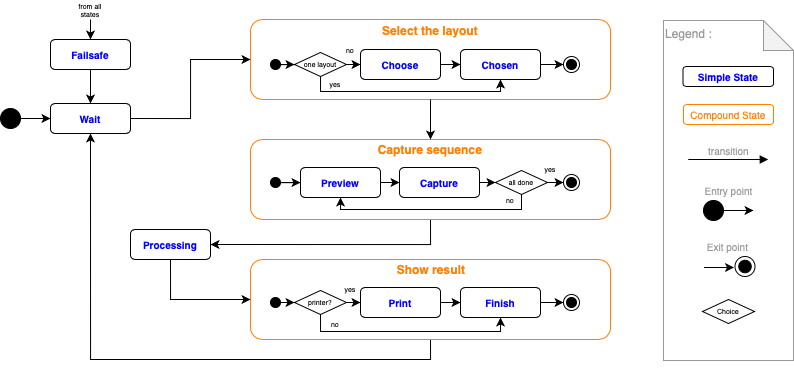
There are four hooks defined for each state.
state_<name>_enterInvoked one time when the state is activating.
state_<name>_doInvoked in a loop until the state is switching to an other one.
state_<name>_validateInvoked in a loop, returns the name of the next state if all conditions are met (else return
None).
state_<name>_exitInvoked one time when the state is exiting.
Code skeleton
A plugin is generally a Python module called pibooth_[...].py. For a better
configuration management, it should have the constant __version__ set to the
plugin version:
__version__ = "1.0.0"
The pibooth_configure hook permits to define some new configuration options.
At this step of the starting process, only the pre-loaded configuration is
available (application is not created yet).
@pibooth.hookimpl
def pibooth_configure(cfg):
    cfg.add_option('CONTROLS', 'startup_led_pin', 29,
                   "Physical GPIO OUT pin to light a LED at pibooth startup")
The new objects, which should persist between states, can be created and attached
to the application instance in the pibooth_startup hook:
@pibooth.hookimpl
def pibooth_startup(cfg, app):
    app.led_startup = LED("BOARD" + cfg.get('CONTROLS', 'startup_led_pin'))
Access to internal variables
cfg
- class PiboothConfigParser(filename, plugin_manager, load=True)[source]
Class to parse and store the configuration values.
The following attributes are available for use in plugins (
cfgreprensents the PiboothConfigParser instance):cfg.filename(str): absolute path to the laoded config filecfg.autostart_filename(str): file used to start pibooth at Raspberry Pi startup
- join_path(*names)[source]
Return the directory path of the configuration file and join it the given names.
- Parameters:
names (str) – names to join to the directory path
- add_option(section, option, default, description, menu_name=None, menu_choices=None)[source]
Add a new option to the configuration and defines its default value.
- Parameters:
section (str) – section in which the option is declared
option (str) – option name
default (any) – default value of the option
description (str) – description to put in the configuration
menu_name (str) – option label on graphical menu (hidden if None)
menu_choices (any) – option possible choices on graphical menu
- get(section, option, **kwargs)[source]
Get a value from config. Return the default value if the section or option is not defined.
- Parameters:
section (str) – config section name
option (str) – option name
- Returns:
value
- Return type:
str
- set(section, option, value=None)[source]
Set a value to config. Create the section if it is not defined.
- Parameters:
section (str) – config section name
option (str) – option name
value (str) – value to set
- gettyped(section, option)[source]
Get a value from config and try to convert it in a native Python type (using the
astmodule).- Parameters:
section (str) – config section name
option (str) – option name
- getpath(section, option)[source]
Get a path from config, evaluate the absolute path from configuration file path.
- Parameters:
section (str) – config section name
option (str) – option name
- gettuple(section, option, types, extend=0)[source]
Get a list of values from config. The values type shall be in the list of authorized types. This method permits to get severals values from the same configuration option.
If the option contains one value (with acceptable type), a tuple with one element is created and returned.
- Parameters:
section (str) – config section name
option (str) – option name
types (list) – list of authorized types
extend (int) – extend the tuple with the last value until length is reached
- getboolean(section, option, *, raw=False, vars=None, fallback=<object object>, **kwargs)
- getfloat(section, option, *, raw=False, vars=None, fallback=<object object>, **kwargs)
- getint(section, option, *, raw=False, vars=None, fallback=<object object>, **kwargs)
app
- class PiboothApplication(config, plugin_manager, window_type='pygame')[source]
Main class representing the
piboothsoftware.PiboothApplicationemits the following events consumed by the view:EVT_BUTTON_CAPTURE
EVT_BUTTON_PRINT
EVT_BUTTON_SETTINGS
The following attributes are available for use in plugins (
appreprensents the PiboothApplication instance):app.capture_nbr(int): number of capture to be done in the current sequenceapp.capture_date(str): date (% Y-%m-%d-%H-%M-%S) of the first capture of the current sequenceapp.capture_choices(tuple): possible choices of captures numbers.app.previous_picture(PIL.Image): picture generated during last sequenceapp.previous_animated(itertools.cycle()): infinite list of picture to display during animationapp.previous_picture_file(str): file name of the picture generated during last sequenceapp.count(pibooth.counters.Counters): holder for counter valuesapp.camera(pibooth.camera.base.BaseCamera): camera usedapp.buttons(gpiozero.ButtonBoard): access to hardware buttonscaptureandprinterapp.leds(gpiozero.LEDBoard): access to hardware LEDcaptureandprinterapp.printer(pibooth.printer.Printer): printer used
- property picture_filename
Return the final picture file name.
- enable_plugin(plugin)[source]
Enable plugin with given name. The “configure” and “startup” hooks will be called if never done before.
- Parameters:
plugin (object) – plugin to disable
- disable_plugin(plugin)[source]
Disable plugin with given name.
- Parameters:
plugin (object) – plugin to disable
win
- class BaseWindow(size=(800, 480), background=(0, 0, 0), text_color=(255, 255, 255), arrow_location='bottom', arrow_offset=0, debug=False)[source]
Base class for window.
BaseWindowemits the following events consumed by plugins:EVT_PIBOOTH_CAPTURE
EVT_PIBOOTH_PRINT
EVT_PIBOOTH_SETTINGS
The following attributes are available for use in plugins (
winreprensents the BaseWindow instance):win.type(str): name of the graphical backend library (noguiorpygame)win.text_color(tuple): RGB color tuple used for textswin.bg_color_or_path(tuple/str): RGB color tuple or path to image used for backgroundwin.is_fullscreen(bool): True if the window is display in full screenwin.is_menu_shown(bool): True if the settings menu is displayed
- add_scene(scene)[source]
Add a scene to the internal dictionary.
- Parameters:
scene (sub-class instance of BaseScene) – scene to add
Set the menu.
- resize(size)[source]
Resize the window only if not fullscreen.
- Parameters:
size (tuple) – new size of the scene
- get_rect(absolute=False)[source]
Return a Rect object (as defined in pygame) for this window.
- Parameters:
absolute (bool) – absolute position considering the window centered on screen
- eventloop(app_update)[source]
Main GUI events loop (blocking).
- Parameters:
app_update (callable) – function update application state
- set_background(color_or_path)[source]
Set background sprite.
- Parameters:
color_or_path (tuple or str) – color of path to an imgae
- set_system_status(printer_queue_size=None, printer_failure=None, total_printed=None, total_taken=None)[source]
Set the current number of tasks in the printer queue.
Show/hide settings menu.